
What you can type
todo / task / remind me to …Makes a reminder instead of an eventLunch with Gaile Friday 1pmEvent; meals get their usual timesDentist tomorrow 3pm for 30 minLengthPay rent on the 1stA day of the month: this month, or next once it has passedFlight sat 8am alert 1 day beforeAlert (or “no alert”)Standup every weekday at 9:30Repeats: every day, week, other week, Monday…… /workPick a calendar or list… @gaile or “with Gaile”Link a contact. @gaile also invites her to an event; “with Gaile” only links her until you press ⌘I or her Invite pill… #home or #blue bottleAdd a place; a reminder alerts when you arrive (⌥↩: when you leave)Open an item, type “tomorrow 3pm”Changes it: a day, a time, “for 2 hours”, “all day”, “/work” or a new name (Esc to add instead)⌘FSearch all events and reminders, or a month (December) or year; click a result's date for the rest of that day← → ↑ ↓Move a day or a week (when the field is empty)⌘↓Step into the day's list: ↑ ↓ move, ↩ opens the item (then type the change), esc goes back⌘TGo to today⌘0Open Calendar⌘ROpen Reminders⌘+ and ⌘−Bigger or smaller text (Settings › Popover › Text size)⌘JJoin the meeting that's on or next today (give it a shortcut from anywhere in Settings › General)⌘ZUndo the last add, completed reminder, move or deleteHold the month nameGo to any month or date (click it for today)Drag an item onto a dayMoves it there, same time (hold it over ‹ › for another month)Share › Add to Practical on a screenshotFills in the event it shows; or paste a picture (⌘V), or drop one here or on the menu bar icon. Read on your MacAttach File… in an itemPick a file, switch Send a Copy to Share a Link, then Copy Link: an iCloud Drive link that opens on your iPhone too. Inviting people? Pick “Anyone with the link” first⇧↩ in notesA new line (↩ saves)Right-click an itemSnooze a reminder, or duplicate an event as a reminder (and a reminder as an event)Swipe an itemLeft deletes it; a reminder also swipes right for done or tomorrowClick Event or Reminder under what you typeSwitches which one is addedDrag the popover's bottom edgeMakes it taller or shorterClick a birthdayWish them a happy birthday by Messages or emailClick a special dayDetails, or hide that kind (Settings › Special days)⌘1 to ⌘9Switch calendar groups, set up in Settings › CalendarsShortcuts and FocusAdd, Next, What's Left Today and groups are Shortcuts actions; a Focus can pick a groupTime zone support (Settings › Time Zones)A time zone menu by the day's list, and a zone for each eventWidgetsRight-click the desktop › Edit Widgets › Practical: Up Next, Today, Month, Week, Reminders and Next Meeting; tick reminders in them, and Edit Widget picks a calendar group or list
Today
Fast, good-looking, right in your menu bar
Push it to Friday.
Done.
Practical sits on top of Calendar and Reminders and keeps up with you. Open any event or reminder and type what's different: “push it to Friday”, “at 4”, “for 2 hours”. Only that part changes. Adding the next one is as quick as saying it, or share a screenshot of a ticket and the event fills itself in. Your next meeting counts down in the menu bar, and ⌘J joins the call.
€40 once, VAT included€40 once, about $44 at today's rate (rounded) · macOS 14 or later · Apple Silicon and Intel


Not a new calendar
Keep your calendar.
Practical sits on top.
Practical reads and writes the Calendar and Reminders already on your Mac, with every account in them. Add something in Practical and it's in Calendar. Add it in Calendar and it's in Practical. Nothing to import, nothing new to sign in to, and nothing changes if you ever stop using it.
Try it right here
Type it like
you'd say it.
This is Practical's own quick add, working in your browser. Write anything: it works out the day, the time, how long, how often, who to invite and when to remind you. Press Return and it lands in your calendar, with Undo right there if you change your mind.
Or try one of these:
What you can type
todo / task / remind me to …Makes a reminder instead of an eventLunch with Gaile Friday 1pmEvent; meals get their usual timesDentist tomorrow 3pm for 30 minLengthPay rent on the 1stA day of the month: this month, or next once it has passedFlight sat 8am alert 1 day beforeAlert (or “no alert”)Standup every weekday at 9:30Repeats: every day, week, other week, Monday…… /workPick a calendar or list… @gaile or “with Gaile”Link a contact. @gaile also invites her to an event; “with Gaile” only links her until you press ⌘I or her Invite pill… #home or #blue bottleAdd a place; a reminder alerts when you arrive (⌥↩: when you leave)Open an item, type “tomorrow 3pm”Changes it: a day, a time, “for 2 hours”, “all day”, “/work” or a new name (Esc to add instead)⌘FSearch all events and reminders, or a month (December) or year; click a result's date for the rest of that day← → ↑ ↓Move a day or a week (when the field is empty)⌘↓Step into the day's list: ↑ ↓ move, ↩ opens the item (then type the change), esc goes back⌘TGo to today⌘0Open Calendar⌘ROpen Reminders⌘+ and ⌘−Bigger or smaller text (Settings › Popover › Text size)⌘JJoin the meeting that's on or next today (give it a shortcut from anywhere in Settings › General)⌘ZUndo the last add, completed reminder, move or deleteHold the month nameGo to any month or date (click it for today)Drag an item onto a dayMoves it there, same time (hold it over ‹ › for another month)Share › Add to Practical on a screenshotFills in the event it shows; or paste a picture (⌘V), or drop one here or on the menu bar icon. Read on your MacAttach File… in an itemPick a file, switch Send a Copy to Share a Link, then Copy Link: an iCloud Drive link that opens on your iPhone too. Inviting people? Pick “Anyone with the link” first⇧↩ in notesA new line (↩ saves)Right-click an itemSnooze a reminder, or duplicate an event as a reminder (and a reminder as an event)Swipe an itemLeft deletes it; a reminder also swipes right for done or tomorrowClick Event or Reminder under what you typeSwitches which one is addedDrag the popover's bottom edgeMakes it taller or shorterClick a birthdayWish them a happy birthday by Messages or emailClick a special dayDetails, or hide that kind (Settings › Special days)⌘1 to ⌘9Switch calendar groups, set up in Settings › CalendarsShortcuts and FocusAdd, Next, What's Left Today and groups are Shortcuts actions; a Focus can pick a groupTime zone support (Settings › Time Zones)A time zone menu by the day's list, and a zone for each eventWidgetsRight-click the desktop › Edit Widgets › Practical: Up Next, Today, Month, Week, Reminders and Next Meeting; tick reminders in them, and Edit Widget picks a calendar group or list
Today
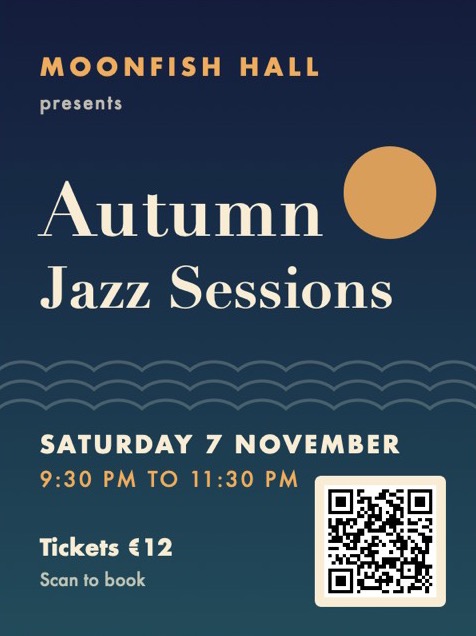
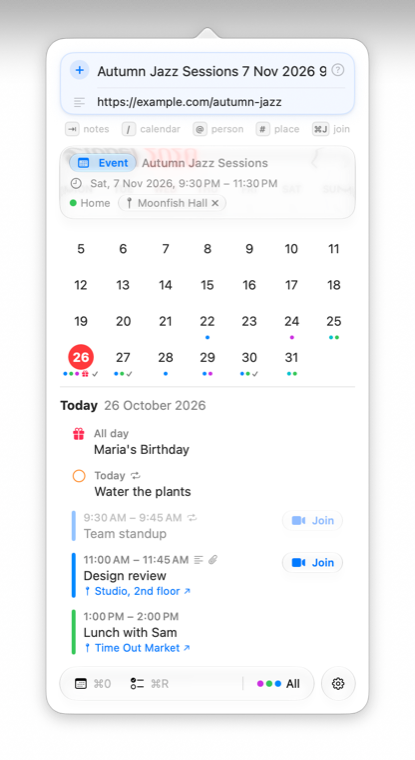
Screenshot to event
Snap the poster.
Get the event.
Practical reads the name, the date, the time, the place and the ticket link, on your Mac, and fills in quick add for you.
Change it
Change it
the same way.
Plans move. Open any event or reminder and type what's different, the way you'd say it. Before you press Return, a card shows exactly what will change, and Undo is right there, with ⌘Z too.
- Only what you say changes. “Friday” keeps the time, “at 4” keeps the day, and the length stays put.
- Times, lengths and repeats. “until 6pm”, “for 2 hours”, “every other week”, “all day”.
- Calendars and lists by name. “move to Home” or “/home”, no menus to dig through.
Try one:
Change “Standup”…
‹ Back
StandupWork
starts:
ends:
repeat:Never
Invites
Invite as you type.
Add @gaile to an event and Practical invites her. “With Gaile” links her, and ⌘I or her Invite pill invites her too. Your calendar emails the invitation a few seconds later, with Undo until then, and ⌘I or the Invite pill skips it. Invitations sent to you show up dashed in the day list: answer with ✓ ? ✕, or open one for Accept, Maybe or Decline.
Lunch with Gaile Friday 1pm
EventLunch with Gaile
Friday, 1:00 PM – 2:00 PM
Gaile Alves✕
The cheat sheet
Everything it
understands.
The same list sits behind the in the app's add field. Click any line on the left and watch Practical's quick add read it.
Type it
Keys
- ⌥⌘NOpen Practical from any app
- ⇥Jump to the notes, and back
- ↩Add it
- escClose Practical (what you typed stays for next time)
- ⌘FSearch all events and reminders, or a month (December) or year
- ←→↑↓Move a day or a week (when the field is empty)
- ⌘↓Step into the day's list: ↑ ↓ move, ↩ opens the item, esc goes back
- ⌘TGo to today
- ⌘0Open Calendar
- ⌘ROpen Reminders
- ⌘+Bigger text (Settings › Popover › Text size)
- ⌘−Smaller text
- ⌘JJoin the meeting that's on or next today
- ⌘IInvite the people on a new event (or take the invites back), like the Invite pill
- ⌘ZUndo the last add, completed reminder, move or delete
The real thing
No mockups. That's the app.
Small app, big days
The little things
that save the day.
One click into the call
Zoom, Meet, Teams and other meeting links turn into a Join button, lit up when the meeting is about to start, and ⌘J joins whatever is on or next. No more digging through the invite. Invited to one? Accept, say maybe or decline it right in the list.
Birthdays, with a gift
Birthdays from your contacts show up on the day and in the month, so none sneaks past. Click one to wish them a happy birthday by Messages or email.
Snooze a reminder
Not now? Swipe it to tomorrow, or open it and pick a later time.
Nothing slips
A reminder you missed stays on today, in red, until it's done. Scrolled past it? A red “overdue” pill takes you back up.
Every calendar you already have
iCloud, Google, Exchange and the rest, straight from macOS. Nothing new to sign in to. Group them (Work, Home) and switch in one click, or let a Focus pick. Plus one of Practical's own that can't be edited by mistake: when the clocks change, New Year, Mother's and Father's Day.
Your calendar never leaves your Mac.
No account. No analytics. No tracking. Read the privacy policy.
Notes you can see coming
A small mark on the time line says an item has notes, another says it repeats, a paperclip says it has docs. You know what's inside before you open it, and one click opens it, ready to edit.
Calendar groups
Work at work.
Everything else after.
Put your calendars and reminder lists into groups, like Work, Home or Family, and switch with one click at the bottom of Practical, or with ⌘1 to ⌘9. The month, the day's list and the menu bar all follow. Calendars are listed by account, so one checkbox takes a whole account.
Let a Focus pick.
Add Practical to a Focus in System Settings and choose a group. Your Work Focus comes on and Practical shows only work. When it ends, the group you had before comes back.
Today
- 9:30 – 9:45 AMStandup
- 2:00 – 3:00 PMDesign review
- 4:30 PMDentist
- 7:30 PMCall Mom
Click the group to switch
Time zones
Fly to Dubai.
Skip the math.
Turn on time zone support and a menu next to the day's list shows your calendar in any of your favorite zones. Each event can keep its own zone, so a flight that leaves at 2:00 PM Dubai time stays at 2:00 PM Dubai time, and Practical tells you when that is where you are.
- Favorites only. Pick the zones you care about in Settings; the menu shows just those.
- All-day stays all-day. A birthday is still on the 19th, whatever the clock says.
- New events land right. Add something while looking at Dubai and it's Dubai time.
Today
- Flight to Lisbon
- Call with Sam
- Dinner at Rosa's
Click the zone to switch: Dubai, Lisbon, New York
Shortcuts and Siri
“What's next?”
Ask Siri.
Practical's actions are in the Shortcuts app. Hand it a sentence and the event appears, ask what's next or what's left today, switch calendar groups. Use them with Siri, in your own shortcuts, or both.
Add to PracticalNext in PracticalWhat's Left TodayShow Calendar GroupOpen Practical
 Add to Practical
lunch with Gaile Friday 1pm
Event added: Lunch with Gaile · , 1:00 PM
What's next in Practical?
Design review, Today at 2:00 PM (in 25m)
Special days
The days that
sneak up on you.
Practical brings a calendar of its own: when the clocks change (to the minute), New Year, Mother's Day on the right date for 170 countries and regions and Father's Day for 143, and the solstices and equinoxes. Nothing to edit by mistake, and it skips any day your holiday calendar already shows.
Coming up
Point, drag, swipe
Your hands already
know how.
No menus to learn. Practical works the way the rest of your Mac does.
Click it, change it
Click any event or reminder and it opens ready to edit. ↩ saves, and if you wander off with changes, it asks first. Places open in Apple Maps and links in notes are clickable.
Files go with the event
Attach the contract, the ticket or the floor plan. It's saved as an iCloud Drive link, so it opens on your iPhone too.
See how it works ↓Drag it to another day
Drop an event or reminder on any day and it keeps its time. Hold it over ‹ › to carry it into another month.
Swipe to deal with it
Swipe a reminder right to check it off or push it to tomorrow. Swipe anything left to delete it.
Undo, right there
Added, moved, saved or deleted the wrong thing? Undo waits in the footer, and ⌘Z works too.
Jump to any date
Hold the month name to pick any month or date. One click brings you back to today. Or press ⌘F and type a month, like December, to see everything in it.
Attachments
Attach the doc.
Open it on your iPhone.
The contract for the meeting, the boarding pass for the flight, the floor plan for the viewing. Practical attaches any file to an event or reminder as an iCloud Drive link, saved in its notes. So it opens wherever the event does: in Practical, in Calendar and Reminders, and on your iPhone and iPad.
- Open an event or reminder and click Attach File…
- Pick the file. In the share menu, switch Send a Copy to Share a Link, then click Copy Link. Practical shows these steps, and a short video, while you do it.
- Done. Practical adds the link, and the file syncs through iCloud Drive.
Inviting people to the event? Pick “Anyone with the link” in the share menu, so they can open the doc too.
Needs iCloud Drive. A file from elsewhere is copied into a Practical folder in iCloud Drive first.
Flight to LisbonHome
starts:Sun 25 Oct, 9:40 AM
docs: Boarding pass.pdf Hotel booking.pdf Attach File…
‹ SundayEdit
Flight to Lisbon
Sunday 25 Oct 2026
from 9:40 AM to 12:10 PM
TP 1353 · bag drop closes 40 min before
Docs:
Boarding pass.pdf: https://www.icloud.com/iclouddrive/0b7…
Hotel booking.pdf: https://www.icloud.com/iclouddrive/09f…
Even the empty days
Nothing on? It notices.
Free days get a little line of their own. Here are a few of them.
- No plans. Very practical.
- Zero meetings. Hero day.
- Second coffee approved.
- Nap: tentatively scheduled.
- Unscheduled. Unbothered.
- Mostly sunny, zero appointments.
- Touch some grass. Officially.
- Nothing on. One more level?
- Today's only plan: lunch.
- No plans. Suspiciously nice.
- Smooth sailing all day.
- Empty calendar. Celebrate quietly.
Reviews
In their words.
From people who use Practical every day.
Pricing
One price.
Yours to keep.
Try every feature free first. Buy only when it's earned its spot in your menu bar. It costs less than a year of most calendar subscriptions, you pay it once, and every license keeps Practical updated and supported.
€40once, VAT included
≈ $44once
€40 at today's rate, rounded to the dollar. You're charged in euros; your bank converts it.
- Every feature, nothing held back
- Updates included
- One license, 2 Macs
- No subscription, no account
- 14-day free trial, no card needed
VAT included, nothing added at checkout. Payments by Stripe.
Questions
Good questions.
Which calendars does it work with?
All of them that your Mac already knows: iCloud, Google, Exchange, Outlook.com and the rest. Practical reads them through macOS, so there's nothing new to sign in to.
Do I have to switch calendar apps?
No. Practical isn't a calendar of its own: it works on top of Calendar and Reminders. Anything you add lands there, and everything already there shows up in Practical. Nothing to import, and if you ever stop using it, nothing changes.
Can I turn a screenshot into an event?
Yes. Share a screenshot of a ticket, an invite or a poster to Add to Practical, paste it with ⌘V, or drag a photo onto Practical or its menu bar icon. Quick add fills in what it shows (the event's own name, the date, the time and the place, plus the link from a QR code), ready for Return. It's read on your Mac, with Apple Intelligence if your Mac has it, and never uploaded.
Is it on the Mac App Store?
Yes. It's the same app, with the same free trial, bought through Apple instead, and Apple sets its price in each country. A license from this site and a purchase on the App Store are separate: each works only with its own version.
How does the trial work?
Download it and use everything free for 14 days. No card, no account. After that the menu bar keeps showing what's next, and the calendar, quick add, search and editing wait for a license key, which you paste into Settings › About.
Is it really a one-time price?
Yes. €40 once, VAT included, and one license covers 2 Macs. No subscription, nothing to renew, updates included.
Yes. €40 once, about $44 at today's rate (rounded), charged in euros, and one license covers 2 Macs. No subscription, nothing to renew, updates included.
Why pay when there are free menu bar calendars?
Most free menu bar calendars show you your day. Practical lets you change it from there: type what's different and an event moves, a screenshot of a ticket or poster becomes the event, a missed reminder stays on today until it's done, invitations get answered in the list and ⌘J joins the call. Try it free for 14 days and see if it earns its place. Each license is what pays for the updates and support that keep it going.
Is my calendar sent anywhere?
Never. Events, reminders and contacts stay on your Mac, and a screenshot you share with Practical is read on your Mac too. When you invite someone, the invitation goes out from your own calendar account, as it does from Calendar. The privacy policy lists the only things the app ever sends: an update check, the trial and license check, and, when you add a place, your search and your rough area to Apple Maps.
Can I invite people, and answer invitations?
Yes. Type @gaile and the new event invites her. “With Gaile” links her, and one press of ⌘I or her Invite pill invites her too. Your calendar account sends the invitation a few seconds later, with Undo until then. An invitation sent to you shows up in the list with ✓ ? ✕, so you can accept, say maybe or decline without opening Calendar. Works with iCloud, Google and Exchange calendars.
Does it handle time zones?
Yes, the way Calendar does. Turn on time zone support in Settings and a menu next to the day's list shows your calendar in any time zone, which helps when you travel. Each event can keep its own zone too, so a flight that leaves at 2:00 PM Dubai time stays at 2:00 PM Dubai time, and the editor shows when that is where you are.
Can I see just my work calendars?
Yes. Make calendar groups in Settings (Work, Home, Family) and switch from the bottom of the popover or with ⌘1 to ⌘9. The popover and the menu bar then show just that group. A Focus can pick one too, so your Work Focus shows your work calendars.
Can I make the text bigger?
Yes. Settings › Popover › Text size has Standard, Large and Larger. The text, the calendar and the popover itself grow together, so nothing gets cramped. ⌘+ and ⌘− change it while Practical is open.
Does it work with VoiceOver?
Yes, and with Voice Control. Every button, field and day has a name, each item in the list is one button that opens it, and its menu (VO-Shift-M, or a right-click) has the rest: complete, join, answer an invite, open the place. Practical also follows Reduce Motion and Dark Mode, and keeps its text high-contrast.
Does it work with Shortcuts?
Yes. Practical's actions are in the Shortcuts app: add an event or reminder from a sentence, get what's next, count what's left today, switch calendar groups or open Practical. Ask Siri "What's next in Practical" and it answers.
How do attachments work?
Practical attaches a file as an iCloud Drive share link, written into the event's or reminder's notes. Calendar and Reminders show it everywhere you're signed in, so the link opens on your iPhone and iPad too. The file itself lives in your iCloud Drive and syncs with it; Practical never uploads anything. Removing a doc takes the link out of the notes and leaves the file in iCloud Drive.
What do I need?
A Mac with macOS 14 Sonoma or later. Apple Silicon and Intel both work.
Is there a Windows, iPhone or iPad version?
No. Practical is made for the Mac only. Documents you attach to an event still open on your iPhone and iPad, through iCloud Drive.